> ## Documentation Index
> Fetch the complete documentation index at: https://chainlit-5-laura-eng-1066-landing-page.mintlify.site/llms.txt
> Use this file to discover all available pages before exploring further.
# Tags, Scores and Metadata, when to use what?
In Literal, you can add Tags, Scores and Metadata to units like Threads, Steps, Runs and Generations. What do they mean and when do you use which type?
## Tags
[Tags](/concepts/thread#tags) can be assigned to Threads, Steps and Generations. You can label these units to filter data. Tags are shared across units, application-wide. For example, Rags could be related to data management such as "to review" or "reviewed". Tags could also be related to the nature of the question. For a customer support bot, you could have "billing", "return policy", etc.
## Scores
[Scores](/concepts/score) allow you to evaluate the LLM system performance at three levels: LLM generations, Agent Runs and Conversation Threads. This can be used to track the performance and accuracy of your system. Scores can be human generated (human feedback, like a thump up or down), or AI generated (hallucination evaluation for instance). A score or feedback can be assigned to a Generation, Step or Thread. Scores can be visualized on the dashboard in charts, and data can be filtered by scores.
## Metadata
[Metadata](/concepts/metadata) enriches objects with additional context, details, or configuration that can be instrumental in customizing and enhancing the functionality of each object. Metadata can be added to Thread, Step, User, and Generation. Metadata adds parameters that are unique to that Thread, Step, User or Generation.
## Example
Let's review this in an example.
#### 1. Create a Thread, with Metadata to a Step
```python Python
import os
import time
from literalai import LiteralClient
client = LiteralClient(api_key=os.getenv("LITERAL_API_KEY"))
def main():
# You can also continue a thread by passing the thread id
with client.thread(name="Thread Example") as thread:
# add user query step to the thread, with metadata
user_query = "Hello, can I ask you a question?"
client.message(content=user_query, type="user_message", name="User", metadata={"location":"France"})
# send assistant message to the thread, without metadata
response = "Yes, how can I help you?"
client.message(content=response, type="assistant_message", name="Assistant")
main()
# Network requests by the SDK are performed asynchronously.
# Invoke flush_and_stop() to guarantee the completion of all requests prior to the process termination.
# WARNING: If you run a continuous server, you should not use this method.
client.flush_and_stop()
```
```typescript TypeScript
import { LiteralClient, Thread } from "@literalai/client";
const client = new LiteralClient(process.env["LITERAL_API_KEY"]);
async function main() {
const thread = await client
.thread({ name: "Thread Example" })
.upsert();
// Add user query step to the thread, with metadata
const userQuery = "Hello, can I ask you a question?";
await thread
.step({
type: "user_message",
name: "User",
output: { content: userQuery },
metadata: { location: "France" },
})
.send();
// Send assistant message to the thread, without metadata
const assistantResponse = "Yes, how can I help you?";
await thread
.step({
type: "assistant_message",
name: "Assistant",
output: assistantResponse,
})
.send();
}
main()
.then(() => process.exit(0))
.catch((error) => console.error(error));
```
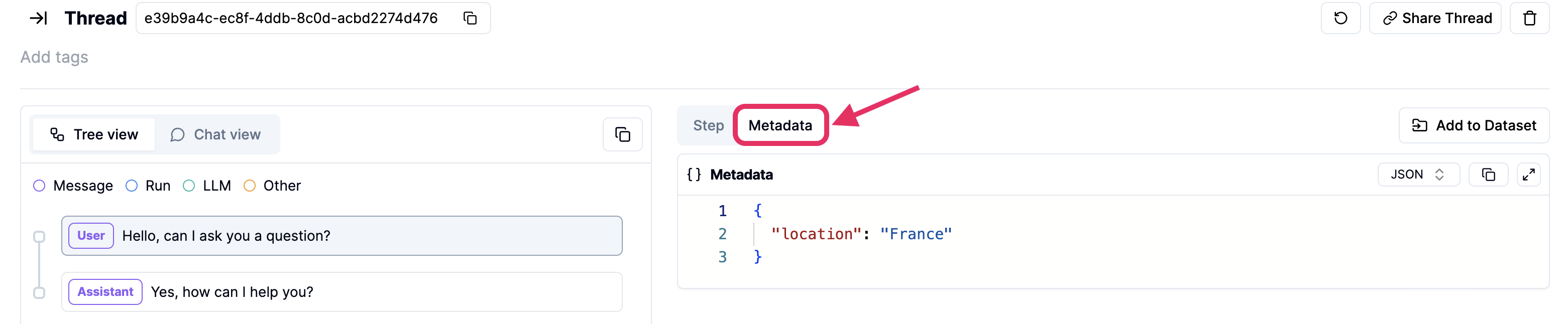
#### 2. View Step Metadata in UI
If you run the code above, you've created a thread with two steps. One step, the user query, has metadata attached. Let's view this in the Literal UI.
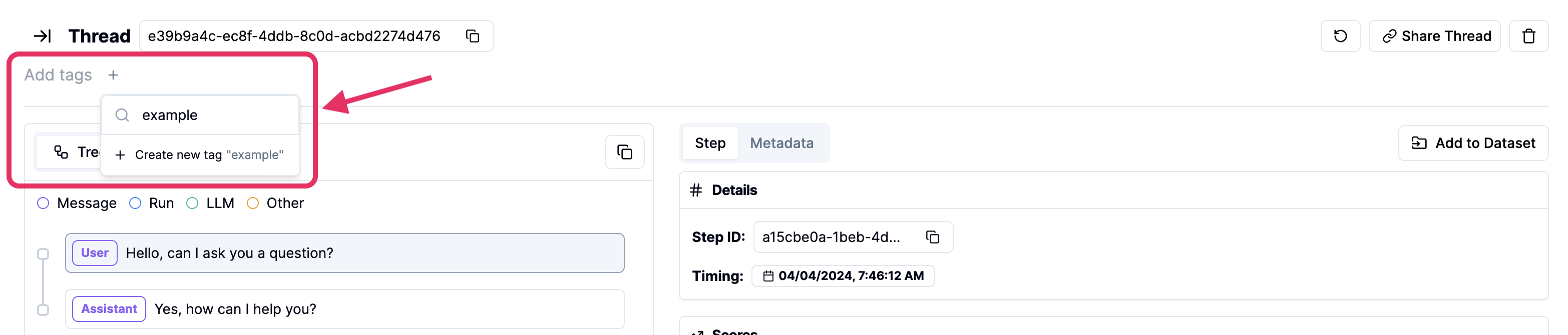
 #### 3. Add Tags to Thread
In the UI and in code, we can add Tags to the Thread and individual Steps.
#### 3. Add Tags to Thread
In the UI and in code, we can add Tags to the Thread and individual Steps.
 ```python Python
import os
import asyncio
from literalai import LiteralClient
client = LiteralClient(api_key=os.getenv("LITERAL_API_KEY"))
async def add_tags():
updated_thread = await client.api.update_thread(
id="e39b9a4c-ec8f-4ddb-8c0d-acbd2274d476", # thread uuid
tags=["example"], # add tags here
)
asyncio.run(add_tags())
# Network requests by the SDK are performed asynchronously.
# Invoke flush_and_stop() to guarantee the completion of all requests prior to the process termination.
# WARNING: If you run a continuous server, you should not use this method.
client.flush_and_stop()
```
```typescript TypeScript
import { LiteralClient, Thread } from "@literalai/client";
const client = new LiteralClient(process.env["LITERAL_API_KEY"]);
const thread = await client.api.upsertThread({
threadId: "e39b9a4c-ec8f-4ddb-8c0d-acbd2274d476", // thread uuid
tags: ["example"]}); // add tags here
```
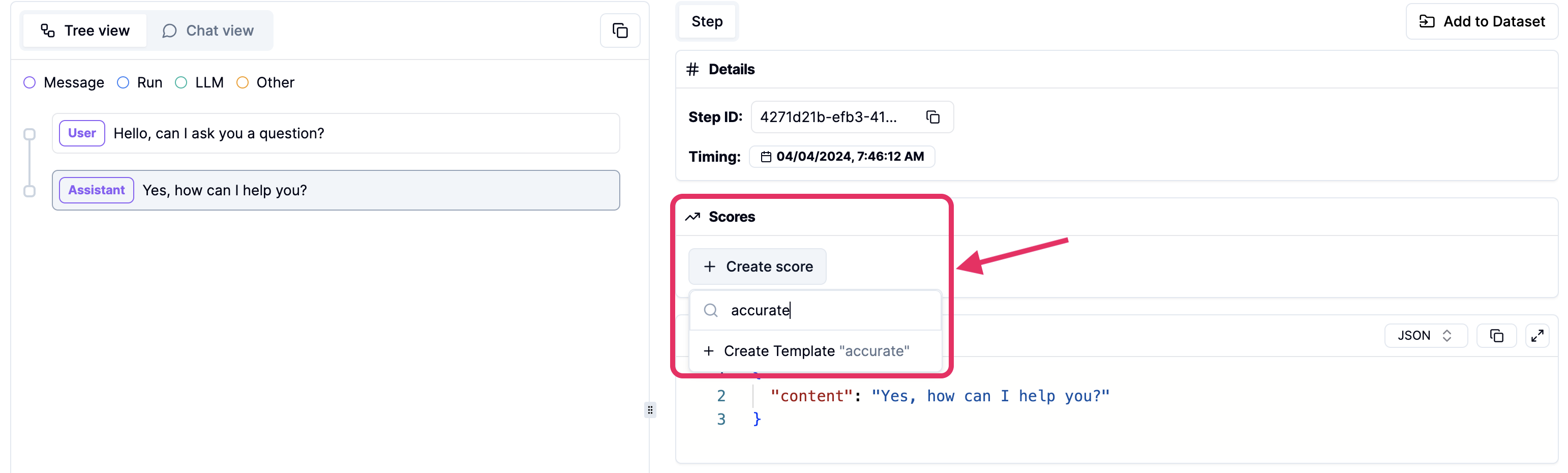
#### 4. Add Score
Finally, we can add a Score to a Step. Let's evaluate how good the response of the assistant was. We can do this in the UI or by code.
```python Python
import os
import asyncio
from literalai import LiteralClient
client = LiteralClient(api_key=os.getenv("LITERAL_API_KEY"))
async def add_tags():
updated_thread = await client.api.update_thread(
id="e39b9a4c-ec8f-4ddb-8c0d-acbd2274d476", # thread uuid
tags=["example"], # add tags here
)
asyncio.run(add_tags())
# Network requests by the SDK are performed asynchronously.
# Invoke flush_and_stop() to guarantee the completion of all requests prior to the process termination.
# WARNING: If you run a continuous server, you should not use this method.
client.flush_and_stop()
```
```typescript TypeScript
import { LiteralClient, Thread } from "@literalai/client";
const client = new LiteralClient(process.env["LITERAL_API_KEY"]);
const thread = await client.api.upsertThread({
threadId: "e39b9a4c-ec8f-4ddb-8c0d-acbd2274d476", // thread uuid
tags: ["example"]}); // add tags here
```
#### 4. Add Score
Finally, we can add a Score to a Step. Let's evaluate how good the response of the assistant was. We can do this in the UI or by code.
 ```python Python
import os
import asyncio
from literalai import LiteralClient
client = LiteralClient(api_key=os.getenv("LITERAL_API_KEY"))
async def add_score():
score = await client.api.create_score(
step_id="4271d21b-efb3-41bd-b8fc-7e060a6461de", # step uuid
name="accurate", # name of the score
type="HUMAN", # Human or AI generated
comment="This is a good answer", # additional comment to the score
value=1, # the numerical score
)
asyncio.run(add_score())
# Network requests by the SDK are performed asynchronously.
# Invoke flush_and_stop() to guarantee the completion of all requests prior to the process termination.
# WARNING: If you run a continuous server, you should not use this method.
client.flush_and_stop()
```
```typescript TypeScript
import { LiteralClient, Thread } from "@literalai/client";
const client = new LiteralClient(process.env["LITERAL_API_KEY"]);
const score = await client.api.createScore({
stepId: "4271d21b-efb3-41bd-b8fc-7e060a6461de", // step uuid
name: 'accurate', // name of the score
type: 'HUMAN', // Human or AI generated
comment: 'This is a good answer', // additional comment to the score
value: 1, // the numerical score
});
```
#### 5. View Scores and Filter by Tags
You can review Human or AI evaluations in the `Scores` tab in the UI. You can filter scores by Step Tags.
```python Python
import os
import asyncio
from literalai import LiteralClient
client = LiteralClient(api_key=os.getenv("LITERAL_API_KEY"))
async def add_score():
score = await client.api.create_score(
step_id="4271d21b-efb3-41bd-b8fc-7e060a6461de", # step uuid
name="accurate", # name of the score
type="HUMAN", # Human or AI generated
comment="This is a good answer", # additional comment to the score
value=1, # the numerical score
)
asyncio.run(add_score())
# Network requests by the SDK are performed asynchronously.
# Invoke flush_and_stop() to guarantee the completion of all requests prior to the process termination.
# WARNING: If you run a continuous server, you should not use this method.
client.flush_and_stop()
```
```typescript TypeScript
import { LiteralClient, Thread } from "@literalai/client";
const client = new LiteralClient(process.env["LITERAL_API_KEY"]);
const score = await client.api.createScore({
stepId: "4271d21b-efb3-41bd-b8fc-7e060a6461de", // step uuid
name: 'accurate', // name of the score
type: 'HUMAN', // Human or AI generated
comment: 'This is a good answer', // additional comment to the score
value: 1, // the numerical score
});
```
#### 5. View Scores and Filter by Tags
You can review Human or AI evaluations in the `Scores` tab in the UI. You can filter scores by Step Tags.
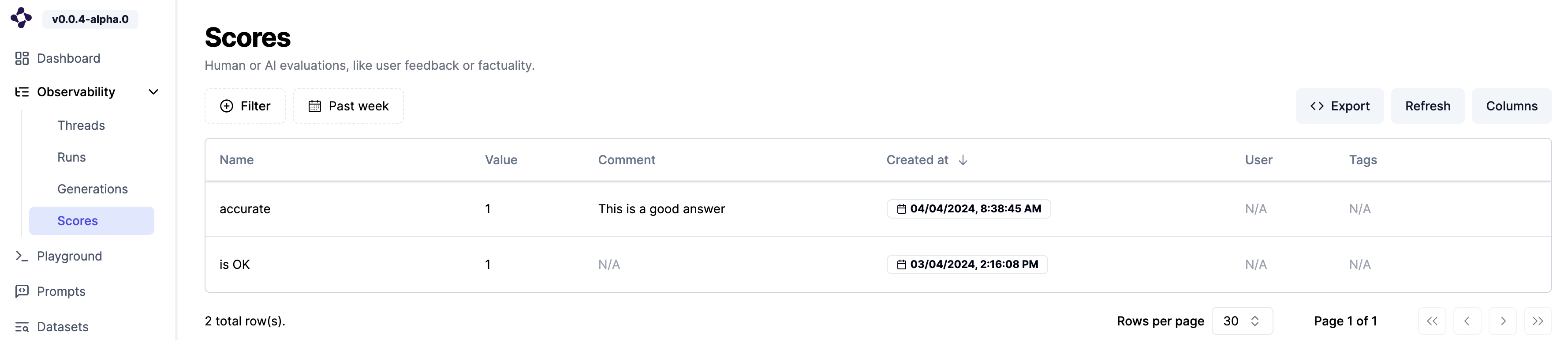 You can Filter Threads by Tags assigned to Threads, like we did in this example.
